Administrators and permissions
You can invite administrators to help manage your clubs. Administrators can be given different levels of access depending on what you want them to be able to do.
Accessing the administrators page
To manage administrators for your account:
- Navigate to Settings (click on your profile icon in the top right)
- In the left sidebar, click on Account
- Click on Administrators
The Administrators page shows a list of all administrators for your account, including their names and roles.
Inviting a new club administrator
To invite a new administrator:
- Navigate to the Administrators page (see above)
- Click the "Invite" button in the top right corner
- Enter the administrator's email address
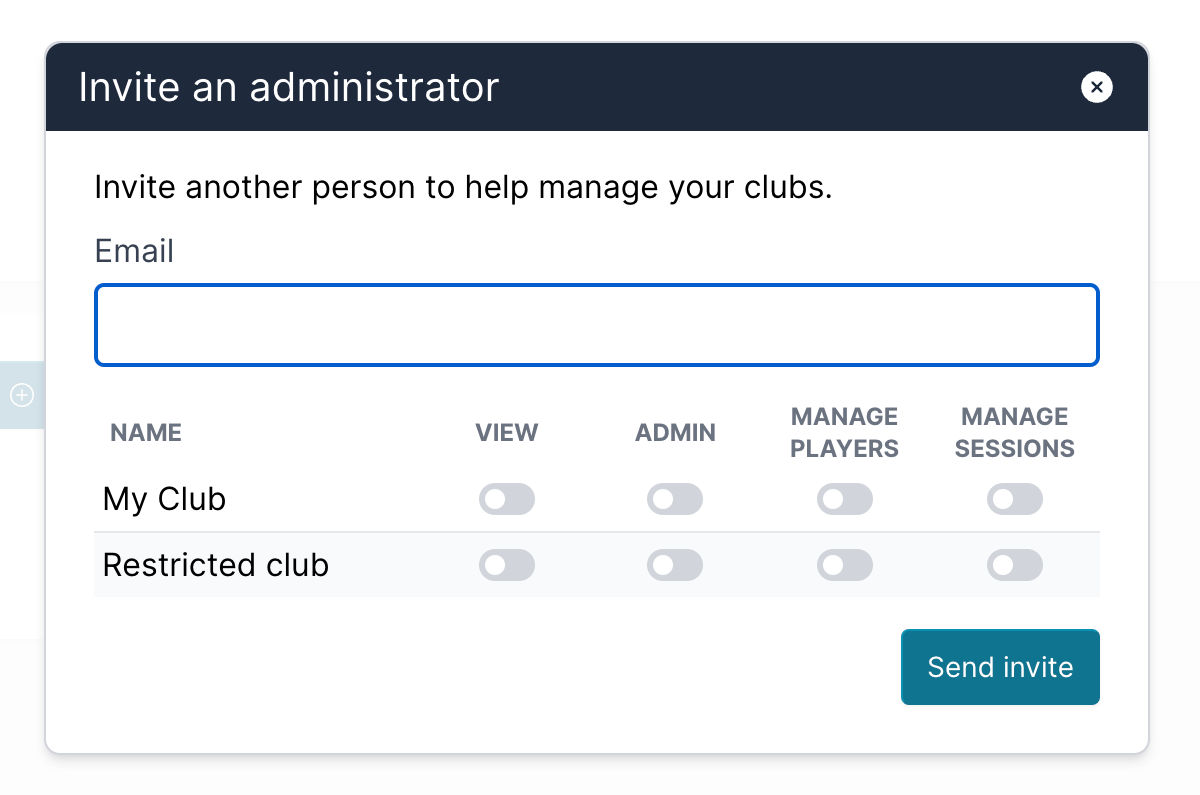
- Choose the permissions you want to give the new administrator for each club
- Click Send invite
The administrator will receive an email invitation. They will only see the clubs you give them permission to.
Managing administrators
The Administrators page displays all administrators in a table with:
- Name: The administrator's name
- Role: Their role (Admin, Manager, etc.)
You can remove administrators by clicking Delete next to their name. Note that some administrators (such as the primary account admin) may not be removable.
Permissions
There are 4 permissions you can choose for each club:
- View: The administrator can view the club and its members, sessions and events.
- Admin: The administrator can edit the club details and set permissions.
- Manage members: The administrator can add and remove people from the member book.
- Manage sessions: The administrator can start and run sessions.